

Documentation Index
Fetch the complete documentation index at: https://www.mintlify.com/docs/llms.txt
Use this file to discover all available pages before exploring further.
Supported file types
- Images: PNG, JPG, JPEG, GIF, WebP (max 20 MB)
- Videos: MP4, WebM (max 20 MB)
- Fonts: TrueType (TTF), WOFF, WOFF2
- Other: PDF, ICO (favicons)
Add media to a page
Drag and drop
Drag and drop media from your computer or the asset manager onto a page. In visual mode, the image or video inserts inline. In Markdown mode, the editor inserts the path at your cursor position. Images save to the root of yourimages/ folder, and videos save to the root of your videos/ folder.
Slash command
Type /image to open the image menu or /video to open the video menu. Upload new media or select from existing files.Embed
Type /youtube to embed a YouTube video or /loom to embed a Loom video. Paste the video URL and the editor generates an iframe. For other embeds, type /embed and switch to Manual embed to write custom HTML.Upload files
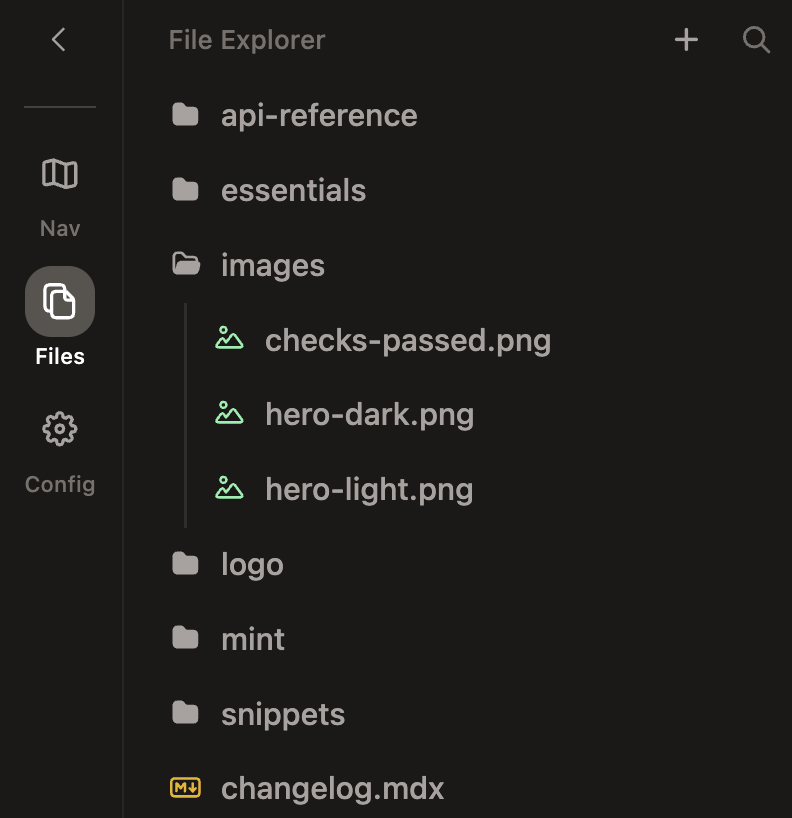
Use the file explorer in the sidebar to upload or search for files. Drag and drop files into a folder to organize media assets.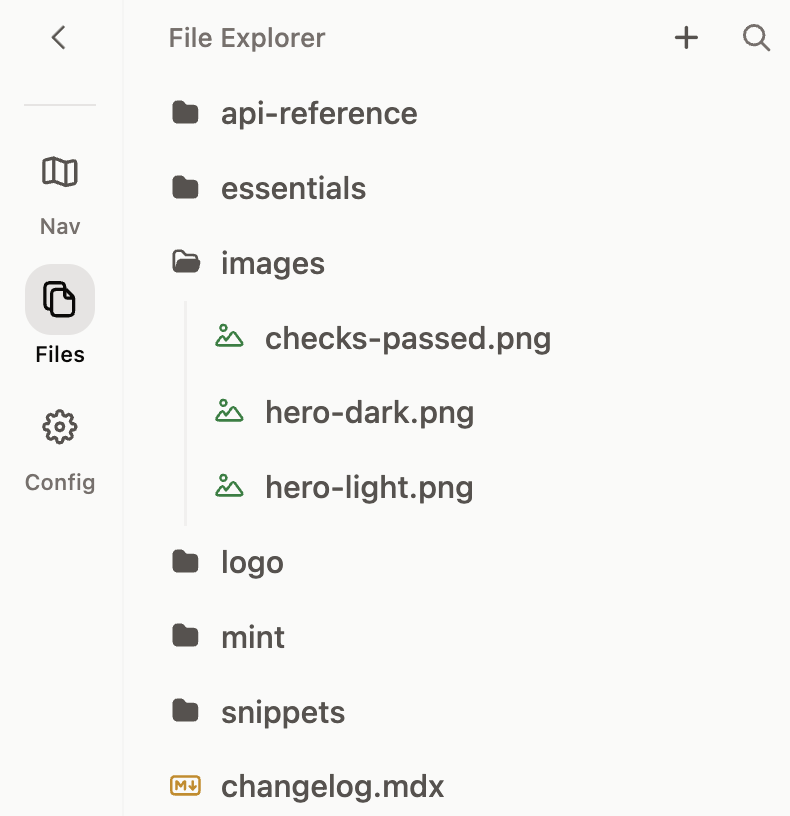
Format images
After inserting an image in visual mode, hover over it to reveal a toolbar with formatting options.- Light/dark preview: Toggle between light and dark mode to see how the image appears in each theme.
- Alignment: Set the image alignment to left, center, right, or full-width.
- Frame: Wrap the image in a
<Frame>component to add a border and background. - Settings: Replace the image or update its alt text.
Manage assets
Organize with folders
Click the + button in the file explorer to create a new folder. Drag and drop files and folders in the file tree to reorganize them.Rename and edit assets
Hover over an asset and click the … button to rename the file or update its alt text.Delete assets
Hover over an asset and click the delete button.Best practices
- Use descriptive names: Name files clearly, like
api-dashboard-light.pnginstead ofimg1.png. - Add alt text: Provide descriptive alt text for accessibility and SEO.
- Organize with folders: Group related assets, such as light and dark mode variants or assets for a specific feature area.
- Use appropriate formats: PNG for graphics with transparency, JPG for photos, SVG for icons and logos (you cannot upload SVG files through the editor, but you can add them to your repository via Git).